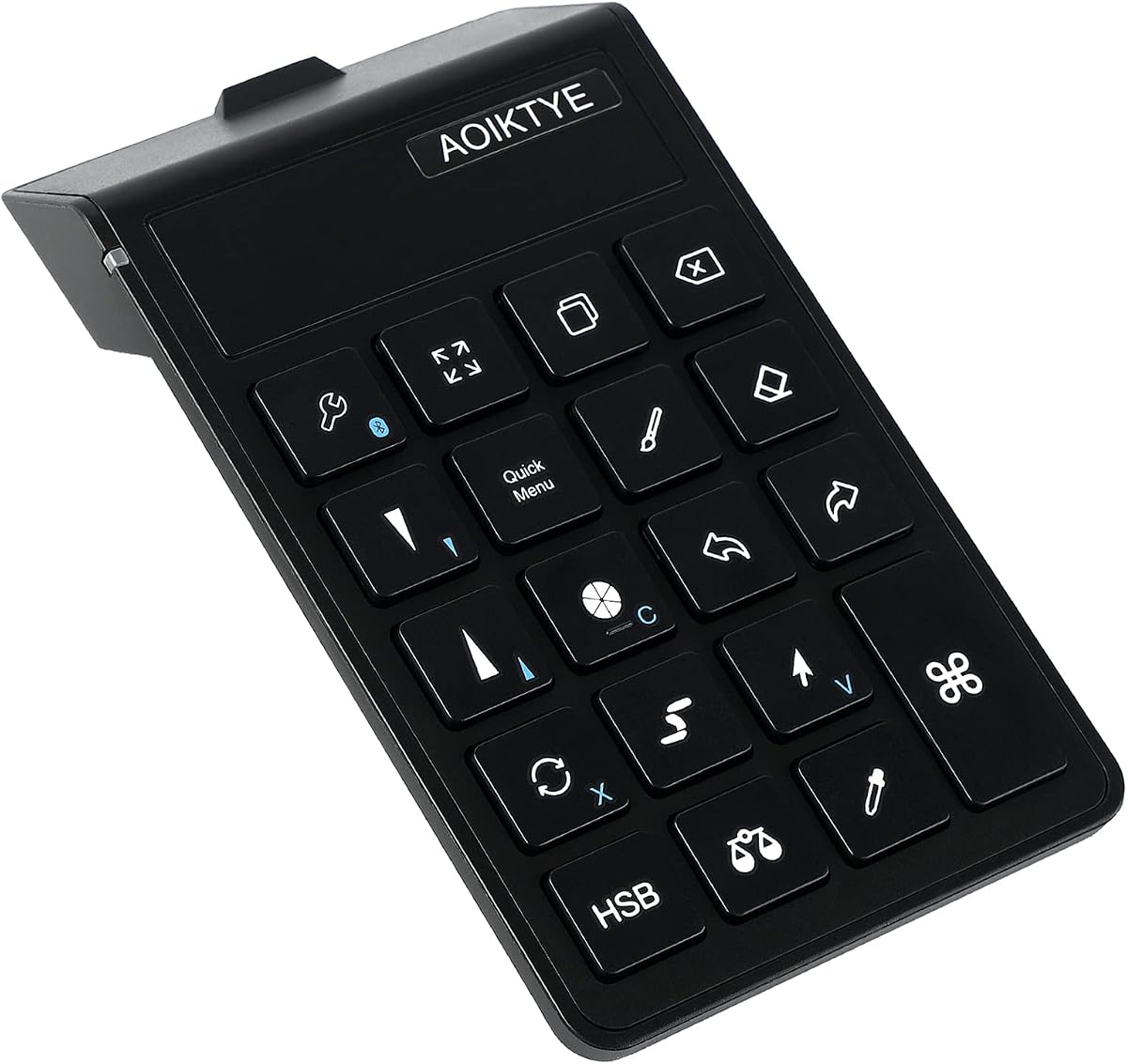
Keyboard for Procreate
4.5Editor score
Designed for Procreate app
22 shortcut keys included
84 hours continuous use
Explore our expert comparison of the top 10 iPad Drawing Bluetooth Controller options for digital artists seeking efficiency and wireless control in October
Digital artists increasingly seek wireless solutions to streamline their creative workflows on tablets. An iPad Drawing Bluetooth Controller offers tactile shortcuts and dials that complement touch input, reducing reliance on screen gestures. These devices enhance precision and speed for illustration, photo editing, and design tasks.
We evaluated ten leading models based on connectivity, customization, ergonomics, and software compatibility. Our analysis covers programmable keys, dial functionality, battery life, and platform support for iPadOS and other systems. Each product was assessed for real-world utility in creative applications like Procreate and Photoshop.
This guide presents detailed reviews and specifications to help you choose the right controller for your needs. Each pick highlights specific strengths and trade-offs to inform your decision. Please note that availability and pricing may vary over time, so check current listings before purchasing.
4.5Editor score

4.3Editor score

5.0Editor score
The following table provides a side-by-side comparison of all ten products reviewed in this guide. It highlights key specifications and features to help you quickly identify the most suitable option for your digital art setup.


The XPPen Mini Keydial ACK05 stands out as a versatile tool for digital artists seeking wireless efficiency. With a solid rating of 4.3 stars, it offers a balance of portability and functionality that suits various creative workflows.
We may earn a commission when you buy through this link, at no additional cost to you.
Its ten programmable keys and rotary dial allow for quick access to essential commands like brush size adjustment and canvas zoom. The anti-ghosting technology ensures reliable multi-key input, which is crucial for complex shortcuts in applications like Photoshop and Illustrator.
While the device requires downloading a driver for full customization on Windows or Mac, the process is straightforward and unlocks extensive control. On iPad, the Shortcut Remote app facilitates setup. The main trade-off is the small key size, which may take adjustment for users with larger hands.
This controller is ideal for illustrators and editors who want a compact device to streamline their tasks without cluttering their workspace. Its long battery life and ergonomic design make it a top recommendation for daily professional use.
Customizable shortcuts reduce time spent navigating menus, allowing artists to focus on creative details.
The 1000 mAh battery supports up to 300 hours of continuous use, minimizing interruptions during long sessions.
We may earn a commission when you buy through this link, at no additional cost to you.
This wireless keyboard is specifically designed to enhance the Procreate experience on iPad, offering 22 dedicated shortcut functions. It has received a high rating of 4.5 stars from users who appreciate its targeted functionality for digital illustration.
We may earn a commission when you buy through this link, at no additional cost to you.
The layout places frequently used keys in accessible positions, improving drawing efficiency by allowing the left hand to manage commands while the right hand draws. Features like layer removal and color adjustments are easily accessible, reducing the need to pause work for menu navigation.
While it is optimized for Procreate, it supports other painting software like Painter and Photoshop. The main limitation is that its full potential is realized primarily within the Procreate ecosystem. The build quality is functional but basic compared to premium models.
Artists who primarily use Procreate on iPad will find this device to be a cost-effective solution that significantly boosts productivity. It serves as an excellent entry point for those looking to add hardware shortcuts to their tablet setup.
Designed specifically for Procreate, it maps essential tools like brush size and undo to physical keys for faster access.
Affordable pricing makes it accessible for hobbyists and students without sacrificing core shortcut functionality.
We may earn a commission when you buy through this link, at no additional cost to you.
The DIGIDRAW K30 represents the pinnacle of remote controllers for creative work, earning a perfect 5.0 rating from satisfied users. Its dual dial system and 11 custom keys offer unparalleled precision for tasks like zooming and layer management.
We may earn a commission when you buy through this link, at no additional cost to you.
Weighing only 82 grams, it is designed for one-handed control without fatigue. Tactile markers on each key allow users to operate the device by feel, keeping eyes on the canvas. The 40-hour battery life ensures reliability during extended projects.
While the price is higher than entry-level options, the build quality and feature set justify the investment for professionals. The main caveat is that driver installation is necessary on computers to unlock all customization features.
This device is recommended for serious digital artists who demand high precision and portability. It excels in environments where quick, blind access to tools is essential for maintaining creative flow.
Two independent dials provide distinct control over different parameters, such as brush size and opacity, simultaneously.
Ultra-light design ensures comfort during long sessions and easy transport to cafes or client meetings.
We may earn a commission when you buy through this link, at no additional cost to you.
The HUION Keydial Mini offers a broad range of 18 programmable keys and a dial for versatile control. It supports a 4.2 rating and is compatible with various creative software including Photoshop and Clip Studio Paint.
We may earn a commission when you buy through this link, at no additional cost to you.
Its setting preview function allows users to check button assignments without memorizing shortcuts, which reduces cognitive load during work. The anti-ghosting technology ensures that multiple keys can be pressed simultaneously without input loss.
While highly versatile, the need for driver installation on computers adds a step to setup. The dial supports up to three functions but may not offer the same tactile feedback as premium models.
This device suits users who want a high number of programmable keys for complex workflows. It is a strong choice for those who value flexibility across different creative applications.
With 18 keys, artists can map a wide array of tools to physical buttons for immediate access.
The preview button displays current settings, simplifying the learning process for new users.
We may earn a commission when you buy through this link, at no additional cost to you.
The ShanWan controller is a versatile device that supports keyboard, mouse, and drawing control functions. It is designed for broad compatibility including iPad and Android tablets but has a lower rating of 3.4 stars.
We may earn a commission when you buy through this link, at no additional cost to you.
Its ergonomic design allows for comfortable extended use, and wireless connectivity provides freedom from cables. The ability to map custom buttons makes it adaptable for various software environments.
However, it is primarily a gaming controller, so features may not be optimized specifically for creative software. Users may need to invest time in customizing mappings to achieve desired functionality.
This option is suitable for users who want a single controller for both gaming and creative tasks. It offers flexibility but requires setup effort to match the specialized efficiency of drawing keyboards.
Compatible with multiple systems, allowing use across iPad, PC, and mobile devices without separate hardware.
Button mapping allows users to tailor the controller to their specific drawing workflow needs.
We may earn a commission when you buy through this link, at no additional cost to you.
This remote control features a built-in trackpad and media controls designed for general iPad navigation. It receives a 3.6 rating and supports iOS Home button functions alongside multimedia playback.
We may earn a commission when you buy through this link, at no additional cost to you.
The trackpad allows cursor movement and app switching, which can aid in interface navigation. It also serves as a wireless presenter for Keynote or PowerPoint presentations on iPad.
However, it lacks specialized drawing shortcuts or dials, making it less suitable for digital art. It is best used for general control and media consumption rather than creative workflows.
Users seeking a tool for navigating iPadOS and controlling media will find this useful. It is not recommended for those prioritizing drawing efficiency and shortcut customization.
Trackpad support enables mouse-like control for precise menu navigation on iPad screens.
Dedicated buttons for volume and playback simplify media management during work breaks.
We may earn a commission when you buy through this link, at no additional cost to you.
The TourBox Lite offers a simplified eight-key layout designed for intuitive control across creative apps. It has a 4.4 rating and features a unified approach that reduces the need to memorize different shortcuts.
We may earn a commission when you buy through this link, at no additional cost to you.
It automatically detects the active app and switches presets, allowing seamless workflow transitions. The ergonomic design supports long sessions without fatigue, and the on-screen HUD shows current controls.
While less customizable than some options, the simplicity is a strength for users who want immediate usability. The higher cost reflects the polished user experience and build quality.
This controller is ideal for beginners and professionals who value ease of use and reliability. It enhances creativity by removing friction from the control process.
Automatic detection of apps ensures the correct settings are active without manual intervention.
On-screen HUD displays current control mappings, reducing the need to remember button functions.
We may earn a commission when you buy through this link, at no additional cost to you.
This controller is designed specifically for tablets with an extendable design and Hall Effect sticks. It has a 5.0 rating and supports various iPad models without needing holders.
We may earn a commission when you buy through this link, at no additional cost to you.
It offers precise analog control and motion sensing, which can be beneficial for certain drawing gestures or games. The vibration feedback adds realism to interactions.
However, it is optimized for gaming rather than creative software shortcuts. Users must check compatibility for their specific tablet model to ensure a secure fit.
This device suits users who want a high-performance controller for entertainment and light interaction. It is less tailored for professional illustration needs compared to dedicated drawing keyboards.
Hall Effect sticks provide accurate and durable control for fine movements on the screen.
Designed to fit many modern tablets directly, ensuring stability during use without extra clamps.
We may earn a commission when you buy through this link, at no additional cost to you.
The Tabmate 2 is exclusively designed for Clip Studio Paint, offering dedicated buttons for common operations. It supports iPadOS and iOS and includes a 12-month software license.
We may earn a commission when you buy through this link, at no additional cost to you.
This focus ensures deep integration with the app, allowing quick access to tools without extra setup. The Bluetooth Low Energy connection ensures efficient power usage.
The main limitation is that it only works with Clip Studio Paint, which limits flexibility. Additionally, it requires AA batteries instead of a rechargeable built-in battery.
Users who rely primarily on Clip Studio Paint will appreciate the specialized functionality. It is a targeted tool for artists invested in that specific software ecosystem.
Designed for Clip Studio Paint to streamline workflows with dedicated shortcuts for that app.
Includes a 12-month license for the software, providing value for new users starting their digital art journey.
We may earn a commission when you buy through this link, at no additional cost to you.
The Wacom Intuos Small is a drawing tablet with Bluetooth connectivity, allowing wireless use with iPads and computers. It offers a 4.4 rating and features Wacom's battery-free EMR pen.
We may earn a commission when you buy through this link, at no additional cost to you.
It includes software and training, making it a complete package for digital drawing. The pen feels natural on paper, providing precision that touch screens cannot match.
While not a remote controller, it serves as a primary input device for drawing. It requires a dedicated desk space and does not offer shortcut keys like the other devices.
Artists seeking high fidelity input will find this tool valuable. It is best for those who prioritize drawing precision over shortcut control on the iPad.
The battery-free pen offers natural feel and pressure sensitivity for detailed artwork.
Includes software and training resources to help users get started with digital drawing quickly.
We may earn a commission when you buy through this link, at no additional cost to you.
Selecting the right controller requires understanding your workflow and software needs. This section outlines key factors to consider before making a purchase.
Bluetooth 5.0 or later ensures stable connections with minimal lag. Check the range to ensure you can work comfortably from your iPad.
Look for reliable Bluetooth versions that prevent drop-offs during critical creative moments.
Verify that the device supports your primary applications like Procreate, Clip Studio Paint, or Photoshop. Some controllers are optimized for specific software.
Ensure the driver or app for configuration is available for your operating system to unlock full features.
More programmable keys offer greater flexibility. Consider how many shortcuts you need to access without touching the screen.
Check if the device supports multiple shortcut sets for different projects or applications.
A lightweight device reduces fatigue during long sessions. Look for tactile markers to allow operation by feel.
Prioritize designs that fit comfortably in your hand to maintain natural drawing posture.
Long battery life minimizes interruptions. Rechargeable lithium-ion batteries are generally preferred over disposable AA options.
Check standby time and continuous use hours to match your typical workflow duration.
Rotary dials offer precise control for brush size or zoom. Look for devices with clear tactile feedback for confident adjustments.
Consider whether physical buttons or dials align with your preferred way of interacting with digital tools.
Sturdy materials ensure longevity. Check for anti-ghosting technology to prevent input errors during complex keystrokes.
Invest in a device with a reputation for reliability to avoid frequent replacements.
Set a budget but consider the value offered by additional features. Sometimes a higher price point includes better support and software integration.
Compare features against cost to find the most efficient tool for your specific needs.
Connect the controller via Bluetooth settings on your iPad. Ensure the device is in pairing mode by pressing the power button until the LED indicator flashes.
Download the necessary app or driver from the manufacturer's website to enable customization. Follow the setup guide to map your preferred shortcuts.
Keep the device clean with a dry cloth to avoid dust buildup. Charge regularly using the provided cable and store in a protective case when not in use.
Yes, many of these controllers support Procreate through dedicated apps or drivers. The Keyboard for Procreate is specifically optimized for this app to ensure seamless integration.
For most controllers, a dedicated app from the App Store is required to configure shortcuts on iPad. On computers, a full driver installation is often needed for complete customization.
Many controllers support multiple applications like Photoshop and Illustrator. However, some are designed for specific software so check compatibility lists before purchasing.
Battery life varies from 40 to 300 hours depending on the model. Most rechargeable units can last several weeks of regular use on a single charge.
Initial setup may require some time to map shortcuts effectively. Most devices offer preset configurations or visual guides to simplify the process for beginners.
Several models feature symmetric or ambidextrous designs allowing comfortable use for left-handed artists. Always check the ergonomic description to confirm fit for your handedness.
Choosing the right controller can significantly enhance your digital art workflow. The XPPen Mini Keydial ACK05 stands out for versatility while the Keyboard for Procreate offers great value for iPad artists.
Prioritize compatibility with your main software and consider ergonomics to ensure comfort. A device that matches your workflow will reduce friction and allow you to focus on creativity.
Prices and availability may change so verify details before purchasing. With the right tool, you can achieve greater efficiency and precision in your digital projects.