
ASUS ProArt PA248QV
4.6Editor score
100% sRGB coverage
WUXGA resolution display
5-year warranty included
Finding the right display for professional work requires careful consideration of color accuracy and resolution. ASUS Proart monitors are engineered to meet the rigorous demands of creative professionals who need reliable visual performance.
We have evaluated ten distinct models based on their technical specifications, user feedback, and professional features. This list covers a wide range of sizes and price points to suit different workstation needs and budgets.
Each pick highlights specific strengths like color gamut coverage or connectivity options. Keep in mind that pricing and availability can change frequently, so verify current details before making your final purchase decision.
4.6Editor score
4.2Editor score
5.0Editor score
As an Amazon Associate we earn from qualifying purchases.
The following comparison table breaks down the key specifications for each of the ten selected monitors. This side-by-side view helps you quickly identify which model offers the specific features you need for your workflow.


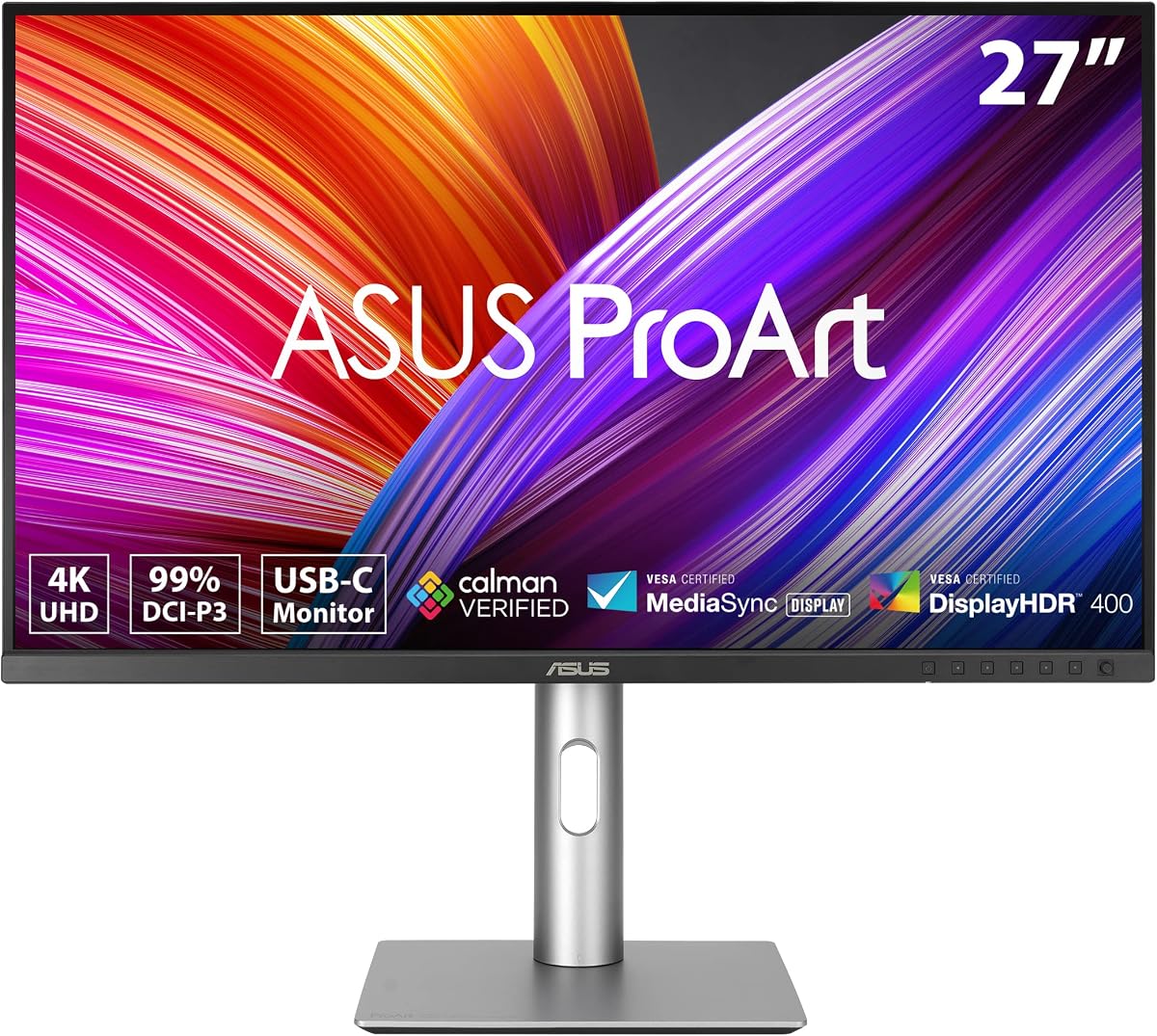
This 27-inch monitor stands out as a top choice for professionals needing high resolution and accurate color. It holds a solid rating among users who value precision in their daily work tasks.
We may earn a commission when you buy through this link, at no additional cost to you.
The factory calibration ensures Delta E less than 2 accuracy which is vital for photo editing. Connectivity is robust with USB-C delivering 96W power to charge laptops while displaying video.
While the price is higher than entry-level options the build quality and color consistency justify the investment. The anti-glare coating helps reduce eye strain during long editing sessions.
Buyers seeking a reliable all-rounder for Mac or PC setups will find this model meets their needs effectively. It represents a strong balance of performance and professional features.
The wide color gamut coverage ensures that what you see on screen matches your prints or digital outputs accurately.
Using a single USB-C cable to charge and connect your laptop reduces cable clutter and simplifies your workstation layout.
We may earn a commission when you buy through this link, at no additional cost to you.
This model offers an accessible entry into the ProArt line without sacrificing essential color accuracy. It maintains a high rating from users who appreciate its value proposition.
We may earn a commission when you buy through this link, at no additional cost to you.
The WUXGA resolution provides a comfortable workspace for document editing and design work. Full sRGB coverage ensures that web graphics and content are represented correctly.
While it lacks the latest Thunderbolt connectivity its reliability and warranty make it a safe choice for budget conscious buyers. The anti-glare feature improves comfort.
It is ideal for students or junior designers who need dependable color performance without a high cost. The stand adjustments allow for ergonomic viewing angles.
At this price point the monitor delivers professional color standards that are usually found on much more expensive models.
The extended warranty provides peace of mind ensuring that your investment is protected against potential hardware issues over time.
We may earn a commission when you buy through this link, at no additional cost to you.
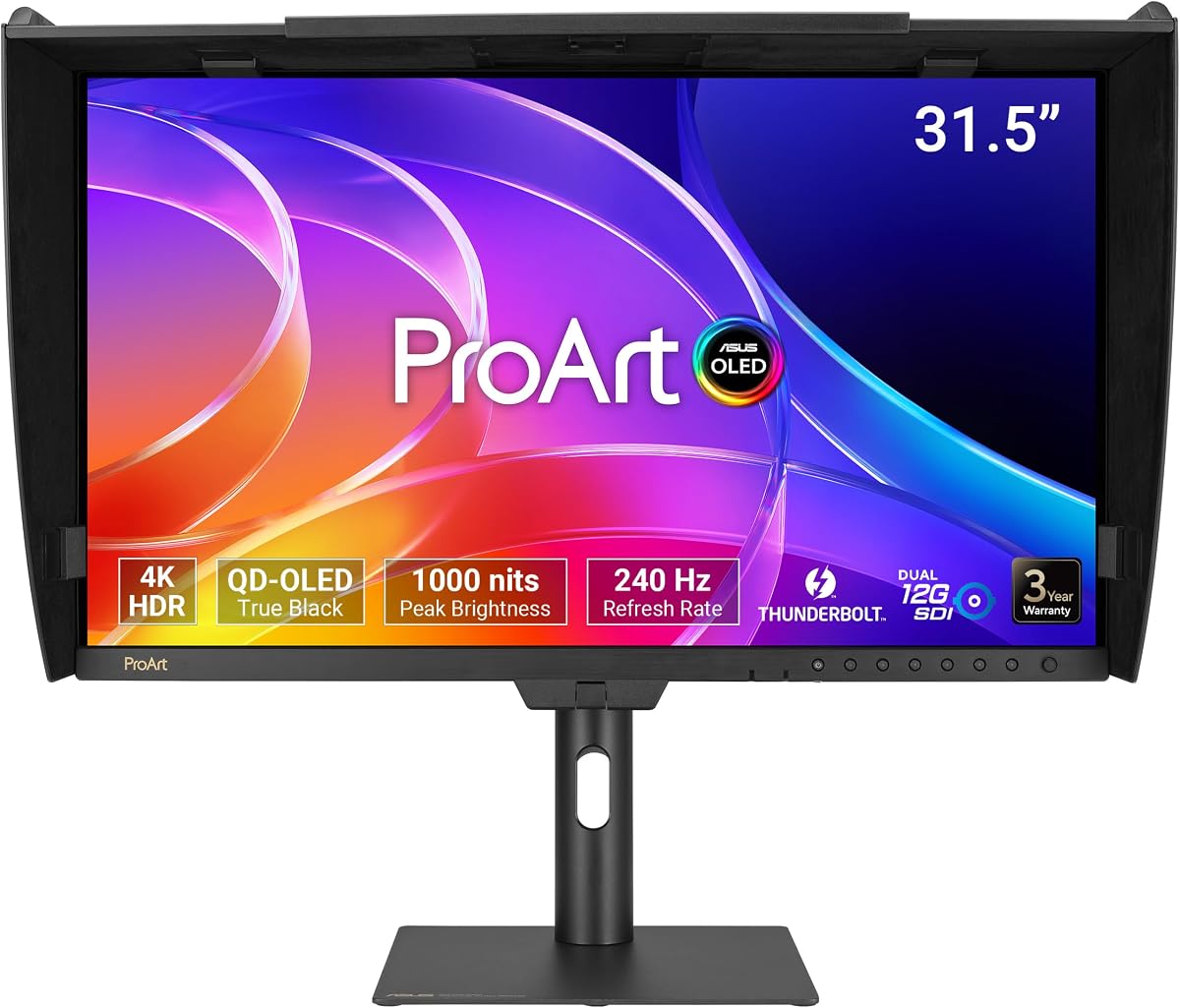
This is a flagship model designed for those who demand the absolute best in visual fidelity and performance. It holds a perfect rating among reviewers who have tested its capabilities.
We may earn a commission when you buy through this link, at no additional cost to you.
The OLED panel delivers infinite contrast and deep blacks which are crucial for high dynamic range video editing. The refresh rate supports smooth motion for animation work.
The cost is significant but the technology included is on par with broadcast grade equipment. Connectivity includes Thunderbolt and SDI for versatile workstation integration.
Buyers looking for a top tier tool for critical color grading will find this monitor unmatched. It represents the pinnacle of ProArt technology for 2026.
The OLED technology ensures that every pixel produces its own light leading to true blacks and vibrant colors simultaneously.
High refresh rates and fast response times mean that scrubbing through video timelines feels instant and fluid without lag.
We may earn a commission when you buy through this link, at no additional cost to you.
This monitor is specifically tailored for users in the Apple ecosystem who need high resolution and seamless integration. It is rated well for its specific feature set.
We may earn a commission when you buy through this link, at no additional cost to you.
The 6K resolution provides immense screen real estate for multitasking. The MacBook color matching feature ensures a consistent look between the laptop and the external screen.
While the price is high the connectivity options reduce the need for additional dongles or hubs. The KVM switch allows easy switching between two computers.
It is best suited for professional creatives working on Macs who need a high-end secondary display. The investment is justified by the workflow efficiency it offers.
The specialized color presets for MacBook displays ensure that your work looks consistent across all your Apple devices.
The Auto KVM switch lets you control two computers with one keyboard and mouse saving desk space and reducing cable clutter.
We may earn a commission when you buy through this link, at no additional cost to you.
This model strikes a good balance between performance and cost for general professional use. It maintains a reliable rating from users who value connectivity and ergonomics.
We may earn a commission when you buy through this link, at no additional cost to you.
The QHD resolution is sufficient for most design tasks and office work. The USB-C port supports 65W power delivery which is enough for many laptops.
Daisy-chaining support allows you to connect multiple monitors without needing extra ports on your computer. The pivot feature is excellent for coding or reading vertical documents.
Buyers looking for a versatile monitor that adapts to different tasks will find this a strong option. It offers good value for the features provided.
DisplayPort daisy-chain support makes it easy to build a dual or triple screen setup with clean cable management.
The ability to pivot the screen 90 degrees allows for comfortable viewing of code or long documents without craning your neck.
We may earn a commission when you buy through this link, at no additional cost to you.
This monitor prioritizes user health and comfort alongside color accuracy. It holds a perfect rating from users who spend long hours in front of the screen.
We may earn a commission when you buy through this link, at no additional cost to you.
The Eye Care technology reduces eye strain which is vital for professionals working late. The color accuracy ensures that creative work remains true to life.
The stand allows for full adjustment to fit your desk and viewing habits. It is a reliable choice for those who prioritize comfort during long workdays.
Buyers who need a healthy viewing experience without compromising on color will find this model effective. It is suitable for general editing tasks.
Advanced eye care features reduce flicker and blue light to help prevent fatigue during extended working sessions.
Certified color accuracy means you can trust what you see on screen when finalizing your creative projects.
We may earn a commission when you buy through this link, at no additional cost to you.
This large format display provides ample space for multitasking and detailed work. It is highly rated for its build quality and color consistency.
We may earn a commission when you buy through this link, at no additional cost to you.
The 32-inch size allows you to have multiple windows open side by side without losing clarity. HDR400 support adds a touch of dynamic range to viewing.
It meets TAA requirements which makes it suitable for government contracts. The color gamut is excellent for professional tasks requiring accurate hues.
Buyers with larger desks who need to maximize screen space will appreciate this size. It is a solid choice for video editing and design.
A 32-inch screen gives you plenty of room to view timelines and toolbars simultaneously without cluttering your workspace.
TAA compliance ensures this monitor meets specific regulatory requirements often needed for government or enterprise procurement.
We may earn a commission when you buy through this link, at no additional cost to you.
This model brings Mini-LED technology to a lower price point than OLED. It has mixed but generally positive ratings regarding its display capabilities.
We may earn a commission when you buy through this link, at no additional cost to you.
The included calibrator allows you to maintain accuracy over time without buying extra hardware. Quantum-dot technology ensures a wide range of colors are visible.
While HDR performance varies compared to higher-end models it is sufficient for general creative work. The USB-C port simplifies connection for laptops.
Buyers wanting Mini-LED benefits without the premium cost will find this useful. It is a practical choice for those needing reliable calibration.
Having a hardware calibrator included in the box saves money and ensures your monitor stays accurate for years.
This technology enhances color purity allowing for more vibrant and accurate display of colors across the spectrum.
We may earn a commission when you buy through this link, at no additional cost to you.
This model bridges the gap between creative work and general use. It is rated well for offering smooth motion alongside decent color accuracy.
We may earn a commission when you buy through this link, at no additional cost to you.
The high refresh rate provides a fluid experience when moving windows or watching video. Color coverage is broad enough for many professional tasks.
While it is not strictly for editing the balance allows for versatility. The USB-C connection with 90W power makes it easy to dock a laptop.
Buyers who need a versatile screen for both work and casual entertainment will find this appealing. It offers strong performance for a reasonable cost.
A higher refresh rate reduces motion blur making scrolling and video playback feel much more natural and responsive.
The USB-C port with high wattage allows you to use a single cable for video and power keeping your setup tidy.
We may earn a commission when you buy through this link, at no additional cost to you.
This monitor is designed for environments where high brightness is required. It holds a lower rating but offers unique high-end specifications.
We may earn a commission when you buy through this link, at no additional cost to you.
The high peak brightness ensures visibility even in bright rooms. The 10-bit color depth allows for smoother gradients in professional content.
The included calibrator helps maintain that brightness and color accuracy over time. Thunderbolt 3 support provides fast data transfer and video connectivity.
Buyers in bright environments needing high-end specs should consider this option. It is a niche tool for specific professional demands.
High peak brightness allows you to use the monitor effectively even in rooms with lots of natural light.
The 10-bit panel supports more color combinations leading to smoother transitions and more realistic images.
We may earn a commission when you buy through this link, at no additional cost to you.
Selecting the right monitor depends on understanding your specific workflow requirements. This guide outlines the most critical factors to consider when evaluating professional displays.
The type of panel determines contrast response time and color accuracy. IPS panels are common for accurate colors while OLED offers deep blacks. Consider what matters most for your daily tasks.
Choose IPS for stable color and viewing angles or OLED for contrast if you work with HDR content often.
Resolution impacts how much detail you can see on screen. A 4K display provides sharp text and fine details while 1440p is often sufficient. Match the size to your desk space.
Ensure the resolution matches your needs so you can view content clearly without unnecessary strain or cost.
Professional work requires accurate color representation. Look for high sRGB or DCI-P3 coverage and Delta E values under two. Calibration tools help maintain this over time.
Prioritize monitors with factory calibration if color precision is vital to your work output.
Your computer dictates what ports you need. USB-C with power delivery simplifies setup for laptops. Check for DisplayPort and HDMI to ensure all devices can connect.
Select a monitor with the necessary ports to avoid buying extra adapters or hubs.
While most creators focus on color a higher refresh rate makes navigation smoother. Standard monitors offer 60Hz but faster options exist. Consider this if you edit video or animation.
Higher refresh rates improve general fluidity even if not strictly required for static design work.
You will spend hours looking at the screen so comfort matters. Look for stands that allow height tilt and swivel adjustments. A pivot feature helps with vertical content.
Ensure the stand supports multiple adjustments to reduce neck and eye strain.
Professional work cannot afford long downtimes. Check the warranty length and what is covered. Some brands offer extended coverage for professional lines.
A longer warranty ensures your investment is protected against defects for several years.
Hardware calibration allows the monitor to adjust internally. This is better than software adjustments. Look for models that include or support calibration tools.
Calibration capabilities ensure your colors stay accurate as the monitor ages.
To ensure optimal performance always allow the monitor to warm up for a few minutes before calibrating. This stabilizes the panel and gives you accurate readings during color setup.
Clean the screen regularly with a soft microfiber cloth to avoid dust buildup. Do not use harsh chemicals that can damage the coating on the panel.
Adjust brightness settings to match the room lighting to reduce eye strain. If you work late consider using night mode features available in the menu.
While it may be overkill for general web browsing ProArt monitors offer high build quality and excellent ergonomics. If you value sharp text and eye comfort they are beneficial for any task.
Some models include a calibrator while others offer software only. Check the product specs carefully as higher-end units typically bundle hardware tools to ensure accuracy.
Yes many models support daisy-chaining via DisplayPort. This allows you to connect multiple screens using a single cable reducing cable clutter on your desk.
USB-C often includes Power Delivery allowing you to charge your laptop while transferring video and data. This simplifies your setup and reduces cable needs.
Higher-end models with Mini-LED or OLED panels support HDR effectively. Standard models may have HDR modes but brightness levels vary by model tier.
Use the built-in calibration tools or an external device periodically. Keeping the monitor clean and using consistent lighting helps maintain color reliability.
The ASUS ProArt line offers excellent choices for professionals at various price points. The top picks cover budget needs up to premium OLED solutions for top tier work.
Prioritize features like color accuracy and connectivity that match your daily workflow. Investing in the right display improves efficiency and reduces fatigue over time.
Remember to check current prices and availability before making your purchase as details may change. Finding the right fit ensures you get the best value for your creative setup.