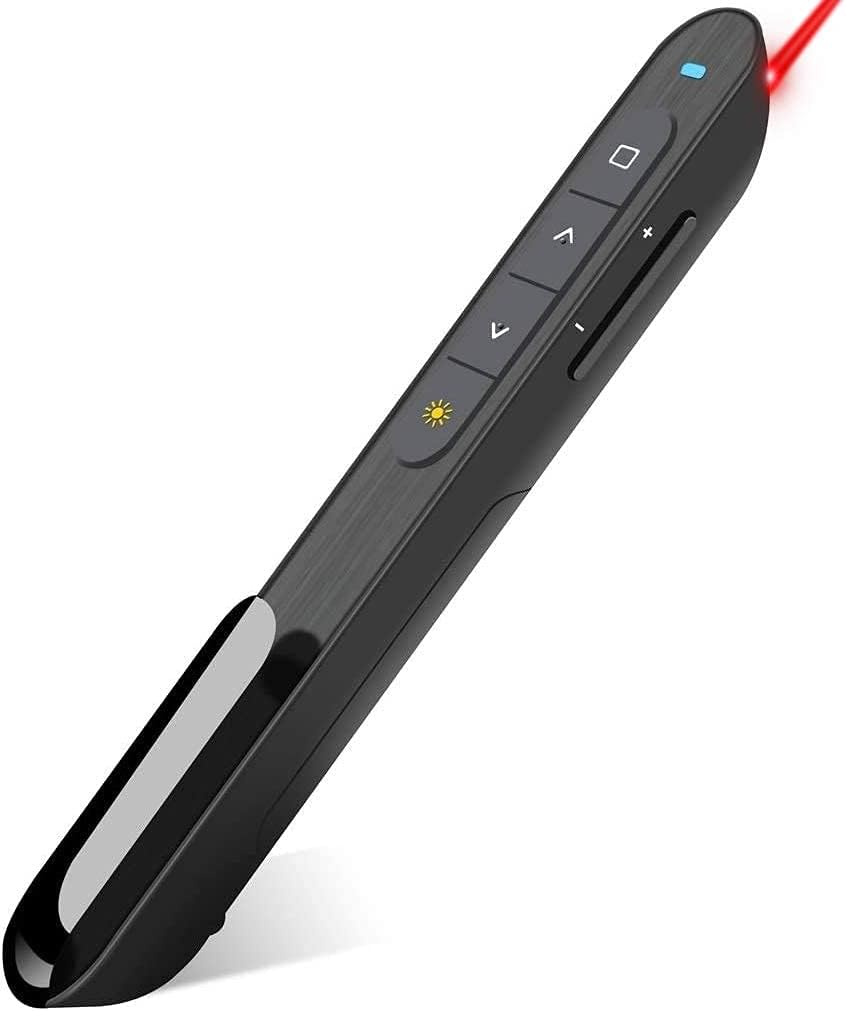
Hyperlink Volume Control Clicker
4.4Editor score
100ft wireless range
Volume control buttons
Magnetic USB storage
This guide compares ten top clicker for power point presentations models to help you choose the best wireless presenter remote with laser and features.
Presenting effectively requires seamless control over your slides. A quality clicker for power point presentations lets you move freely while maintaining focus on your audience and content without being tethered to your laptop.
We evaluated ten leading wireless presenter remotes based on range, battery life, ergonomics, and compatibility. Each model offers unique features like laser pointers, volume control, and USB-C support to suit different professional and educational needs.
Every pick highlights key specs and user benefits to simplify your decision. Prices and availability may change, so check current listings before purchasing to ensure you get the best value for your presentation setup.
4.4Editor score

4.6Editor score

4.4Editor score
This table provides a side-by-side comparison of all ten selected wireless presentation clickers, highlighting their core specifications and unique features to help you find the right fit.


The Logitech Wireless Presenter R400 stands out as a reliable choice for professionals needing a dependable clicker for power point presentations. With a 4.6 rating, it offers seamless slide control without requiring software installation. Its bright red laser helps emphasize key points clearly during any presentation.
We may earn a commission when you buy through this link, at no additional cost to you.
This presenter features a 50-foot wireless range, allowing you to move freely around the room while staying connected. The intuitive touch-keys make advancing slides simple and error-free. You can store the USB receiver inside the remote for easy transport and to prevent loss.
While the range is shorter than some competitors, it suffices for most conference rooms and classrooms. The reliance on AAA batteries means you should keep spares on hand. Overall, its simplicity and durability make it a trusted tool for daily presentations.
If you prioritize reliability and ease of use over extra features, this clicker is ideal. It works effortlessly with Windows and Mac systems. Consider this model if you want a straightforward solution for PowerPoint presentations without technical hurdles.
Simply plug the USB receiver into your computer and start presenting immediately without installing drivers or software.
The receiver docks inside the remote, keeping it safe and organized for easy portability.
We may earn a commission when you buy through this link, at no additional cost to you.
This Hyperlink Volume Control Clicker offers exceptional value for those seeking a feature-rich clicker for power point presentations. With a 4.4 rating, it supports hyperlink navigation and volume adjustments, making it versatile for multimedia presentations. The 100-foot range ensures freedom in large spaces.
We may earn a commission when you buy through this link, at no additional cost to you.
Its bright red laser pointer helps focus audience attention on specific slide elements. The soft rubber buttons provide tactile feedback, reducing accidental clicks. A magnetic USB storage solution keeps the receiver secure within the device for convenience.
The auto-sleep function extends battery life, though you must supply the AAA battery. Users should avoid using the laser on LCD or LED screens to prevent damage. Despite this limitation, it remains a robust option for various presentation environments.
Ideal for budget-conscious presenters who need advanced controls, this clicker delivers performance without breaking the bank. It supports multiple systems and software. Choose this if you want volume and hyperlink features at an affordable price point.
Built-in volume control allows you to adjust audio directly during your presentation without touching your computer.
The 100-foot range lets you engage with the audience from anywhere in the room without connection drops.
We may earn a commission when you buy through this link, at no additional cost to you.
Designed with user comfort in mind, this Presentation Clicker for PowerPoint features an ergonomic build that fits naturally in your hand. It scores a 4.6 rating for its balanced design and performance. The large buttons prevent accidental clicks, ensuring smooth slide transitions during critical moments.
We may earn a commission when you buy through this link, at no additional cost to you.
With a control range of 98 feet and a laser pointer reaching 328 feet, you can highlight content from a distance effectively. The device weighs only 58 grams, making it easy to carry in pockets or bags. It includes two AAA batteries for immediate use.
While the laser is standard, the included batteries and power switch offer practical convenience. The USB receiver stores neatly in a slot on the remote handle. Compatibility spans Windows, Mac, and Linux systems for broad utility.
This model suits professionals who value physical comfort during long sessions. The on-off switch helps conserve battery life between uses. Consider it if you need a reliable, lightweight clicker for daily presentations.
The soft-touch ergonomic design reduces hand fatigue during extended speaking engagements.
Includes two AAA batteries so you can start presenting immediately upon purchase.
We may earn a commission when you buy through this link, at no additional cost to you.
This clicker addresses modern device connectivity with built-in USB-A and USB-C receivers, eliminating adapter needs. Rated 4.4, it supports both older PCs and new Macs seamlessly. The volume control buttons are a standout feature for managing audio during slides.
We may earn a commission when you buy through this link, at no additional cost to you.
It offers a 100-foot wireless range and a bright red light pointer visible even in large conference halls. The ergonomic body features soft touch oil coating for comfort. A magnetic slot securely holds the receiver when not in use.
While it requires two AAA batteries (not included), the auto-sleep technology ensures long standby times. The compact design fits easily in laptop bags. Users should note the receiver may detach if handled roughly.
For professionals using mixed device ecosystems, this clicker removes compatibility barriers. The magnetic storage ensures you never lose the receiver. Choose it if you need versatile connectivity without extra dongles.
One device works with both USB-A and USB-C ports, simplifying setups across different computers.
Adjust media volume directly from the remote without switching away from your presentation slides.
We may earn a commission when you buy through this link, at no additional cost to you.
Teachers and educators will appreciate this clicker for its simplicity and cost-effectiveness. With a 4.5 rating, it supports PowerPoint and Google Slides effortlessly. The ergonomic design ensures comfort during long classroom lectures or seminars.
We may earn a commission when you buy through this link, at no additional cost to you.
It includes two AAA batteries and an on-off switch to extend usage time. The 98-foot range allows movement around the classroom without signal loss. The remote is sturdy enough for daily handling in educational settings.
Though it lacks volume controls, its primary slide advancement functions work reliably. The laser pointer is bright enough for typical classroom lighting. The USB receiver stores in the remote to prevent misplacement.
Ideal for schools with budget constraints, this clicker delivers essential features without fluff. The battery switch helps manage replacement costs. Consider it for classroom use where basic control is sufficient.
An on-off switch on the side prevents accidental battery drain when the clicker is not in use.
Supports Windows, Mac, and Linux systems commonly used in school computer labs.
We may earn a commission when you buy through this link, at no additional cost to you.
If you frequently travel for work, this clicker with an included fabric drawstring bag offers valuable protection. Rated 4.7, it ensures your device stays scratch-free in your bag. The USB receiver fits into the remote end for secure storage.
We may earn a commission when you buy through this link, at no additional cost to you.
The buttons provide responsive tactile feedback without delays, ensuring smooth transitions. It includes two AAA batteries for immediate use. The laser pointer helps emphasize key data points during meetings.
While the case adds minor bulk, it protects against wear and tear. The sleek profile fits in pockets when the bag isn't needed. It supports all major operating systems and presentation software.
This model is perfect for consultants or speakers on the go. The included case saves extra accessory purchases. Consider it if protecting your investment is a priority.
A fabric drawstring bag keeps your clicker safe from scratches and loss in transit.
Tactile feedback ensures you know each press registered, preventing missed slides.
We may earn a commission when you buy through this link, at no additional cost to you.
This clicker stands out for its hyperlink navigation capability, allowing direct jumps to slides or external links. With a 4.6 rating, it supports multimedia presentations effectively. The included AAA battery means you can start using it right away.
We may earn a commission when you buy through this link, at no additional cost to you.
The 100-foot control range and 200-meter light range ensure visibility in large venues. It supports multiple OS like Windows, Mac, and Android. The compact design makes it easy to carry to any event.
Users may need simple setup on Mac systems. The single battery life is decent for standard meetings. It also supports volume control for integrated audio clips.
For interactive talks requiring links, this tool simplifies navigation. It reduces reliance on keyboards during demos. Consider it if you need advanced control features for dynamic presentations.
Navigate directly to specific slides or URLs during your presentation for seamless transitions.
Includes volume controls to manage audio within PowerPoint or other slide software.
We may earn a commission when you buy through this link, at no additional cost to you.
Weighing only 38 grams with battery, this is one of the lightest clickers available. It offers a 4.5 rating for its simplicity and portability. The USB dongle stores neatly inside the battery compartment, reducing loss risk.
We may earn a commission when you buy through this link, at no additional cost to you.
It requires one AAA battery, which can last up to two months. The design features dark gray buttons for a sleek look. It works with Windows, Mac, and various presentation software seamlessly.
While it lacks volume or hyperlink functions, it excels at basic slide control. The laser is visible even in dim rooms. Users must insert the battery film before use to activate power.
Best for those who prioritize portability over advanced features. Its compact size fits in shirt pockets easily. Consider it for quick meetings where minimal gear is preferred.
Weighs only 38 grams, making it barely noticeable in your pocket during travel.
Focuses on core slide navigation, avoiding unnecessary buttons that clutter your hand.
We may earn a commission when you buy through this link, at no additional cost to you.
The Logitech Spotlight elevates presentations with mouse-like cursor control and smart time management. Rated 4.4, it offers a premium experience for execs and keynote speakers. The vibration alerts remind you of milestones, helping you stay on schedule.
We may earn a commission when you buy through this link, at no additional cost to you.
You can play videos and open links directly via the cursor without touching the keyboard. Dual connectivity via USB-A or Bluetooth ensures flexibility. The Logi Options+ app allows deep customization of effects and timing.
While pricier, the investment pays off in professional impact. The USB receiver docks inside the device. It works universally with Windows, Mac, and major software like PowerPoint.
Ideal for high-stakes presentations needing polished interaction. The cursor feature is unique among clickers. Choose this if you value advanced interaction and timing tools.
Configure milestones in the app and receive vibration alerts to keep your presentation on track.
Use the on-screen cursor to interact with links and videos seamlessly during your talk.
We may earn a commission when you buy through this link, at no additional cost to you.
This model includes a built-in 300mAh battery, eliminating the need for disposable cells. Rated 4.4, it offers rechargeable convenience plus air mouse capabilities. A three-hour charge provides weeks of use time.
We may earn a commission when you buy through this link, at no additional cost to you.
The air mouse feature allows precise cursor control without needing a physical mouse. The 164-foot range lets you roam widely. A clip on the back attaches to pockets or books for safe placement.
It supports both USB-A and USB-C receivers. The rechargeable aspect reduces waste and long-term costs. The sleep mode ensures power isn't wasted between presentations.
Perfect for eco-conscious users who hate changing batteries. The air mouse adds flexibility for demos. Choose this if you want a self-sufficient device with cursor capabilities.
Built-in rechargeable battery avoids the need for disposable AAA cells, saving money.
Toggle cursor mode to control your desktop remotely, ideal for software demos.
We may earn a commission when you buy through this link, at no additional cost to you.
Selecting the right clicker requires evaluating connectivity, range, and specific features to match your presentation needs.
Ensure the clicker supports your computer ports. Look for USB-A, USB-C, or Bluetooth to avoid needing extra adapters. Modern devices increasingly use USB-C, so dual support is beneficial.
Prioritize universal compatibility to save hassle during setup.
Check the advertised wireless range. Most range between 50 and 164 feet. For large halls, choose models with at least 100 feet to maintain connection while moving freely.
Select a range that covers your typical room size effectively.
Decide between rechargeable or disposable battery models. Rechargeable units save money but need charging. Disposable units offer convenience but add waste. Check battery type, such as AAA, for easy replacement.
Consider how often you present to determine if battery life is critical.
Feel the grip size and button layout. Soft-touch surfaces reduce fatigue. Large buttons prevent accidental clicks during fast-paced transitions. The remote should fit comfortably in your hand for extended use.
Comfort is key if you present frequently or for long durations.
A bright laser helps highlight points on the screen. Ensure it is visible but safe. Avoid using lasers on screens like LCDs. The range of the laser should match your room size.
A clear pointer improves audience focus and presentation flow.
Look for extras like volume control, hyperlink support, or cursor control. These features add versatility for multimedia presentations. However, ensure they do not complicate basic slide control.
Extra features are valuable if your presentations require interaction or media.
Verify support for your presentation software like PowerPoint, Keynote, or Google Slides. Most universal clickers work with all major platforms. Check if drivers are needed for setup.
Plug-and-play devices save time and technical setup issues.
Check if the clicker includes a case for travel. Sturdy materials ensure it survives drops. A secure receiver storage slot prevents losing the USB dongle.
Protective features extend the lifespan of your presentation tool.
To start, insert batteries or charge the clicker. Plug the USB receiver into your computer's port and ensure your presentation software is open.
Press the power button to turn on the device. Navigate slides by pressing the forward or backward arrows. Use the laser button to highlight details on screen.
After use, turn off the clicker to save power. Store the USB receiver inside the remote or bag. Clean the buttons regularly to maintain responsiveness.
Most models in this guide support Mac OS alongside Windows and Linux. Always verify compatibility with your specific version. Plug-and-play models require no drivers on Mac systems for basic functions.
Look for Class 2 laser pointers, which are generally safe for presentations. Avoid looking directly into the beam or shining it at people. Check product specs for safety ratings before use.
Some advanced models support Bluetooth connectivity to avoid receivers. Ensure your computer has Bluetooth enabled for these units. Most basic clickers require a USB receiver for wireless communication.
Check the distance between the clicker and receiver. Try replacing the batteries if the signal is weak. Ensure no physical obstructions block the line of sight between the devices.
Yes, most universal clickers support Google Slides and other cloud platforms. They work via standard keyboard shortcuts. Verify software support in the product description before purchasing.
Lifespan varies by model and usage. Some AAA batteries last weeks, others months. Rechargeable models typically offer weeks of use per charge cycle.
We have reviewed ten top options ranging from budget-friendly to premium tools. Each offers distinct benefits like laser pointers, USB-C support, or advanced interaction.
Prioritize range, ergonomics, and power needs to match your presentation environment. For travelers, a protective case and universal connectivity matter most.
Always check current prices and availability before buying to ensure you get the best deal for your needs.